> ## Documentation Index
> Fetch the complete documentation index at: https://hyperframes.heygen.com/llms.txt
> Use this file to discover all available pages before exploring further.
# Edit the frame
> Select the right element, change its content or design, arrange layers, and verify the result in motion.
Use this workflow when you can point to the thing that needs to change in the
current frame.
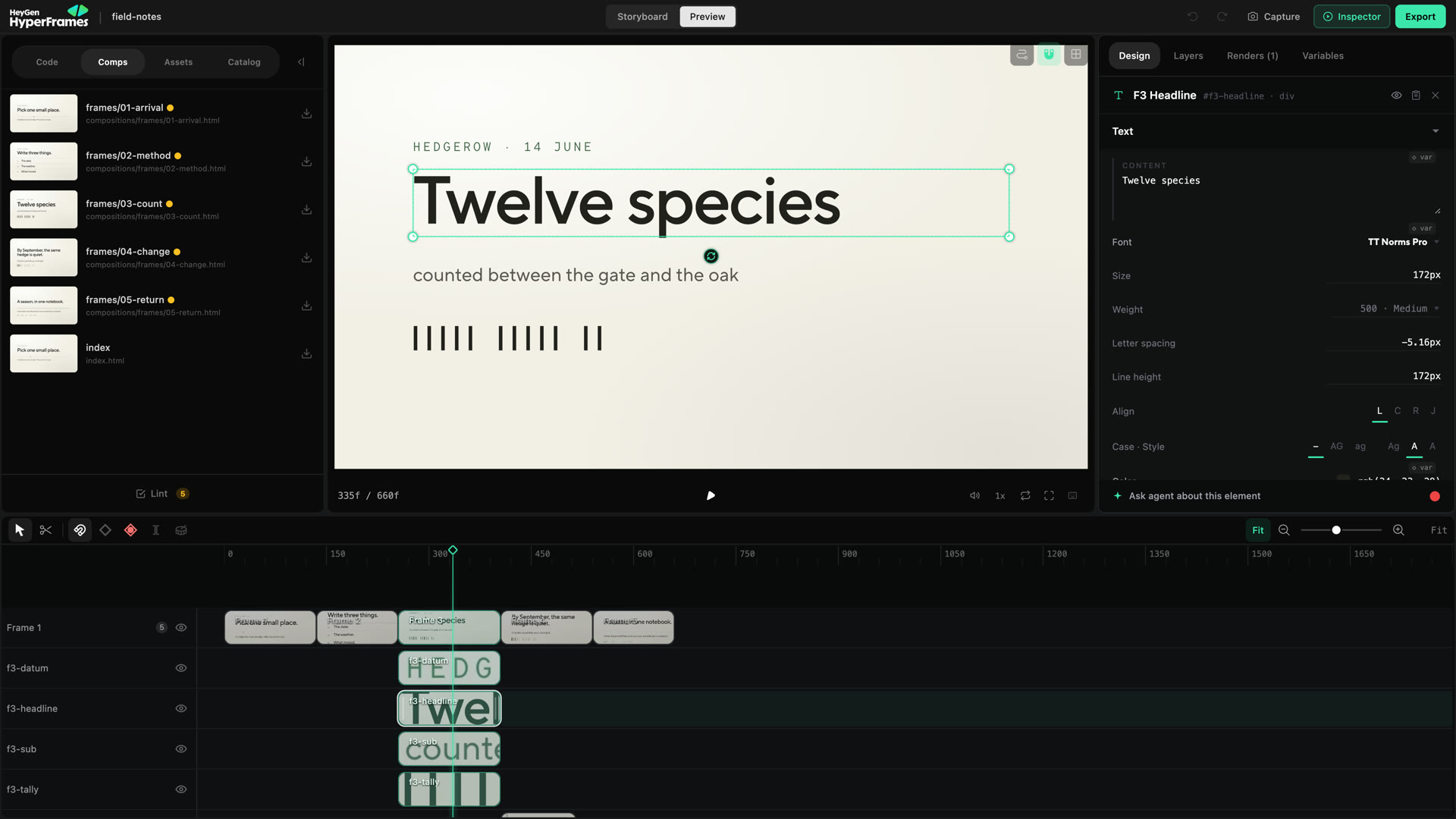 ## 1. Pause where the element is visible
Move the playhead to a frame where you can judge the element and its
surroundings. If it enters or exits, pause after the movement has settled.
Click the element on the canvas. When the wrong item is selected, open
**Inspector → Layers** and choose it there. Layers is also the reliable way to
find something that is hidden, outside the frame, or inside a group.
The selection stays connected across the canvas, Inspector, and timeline.
## 2. Change only what is wrong
Use the canvas for spatial edits:
* drag inside the selection to move it;
* drag a handle to resize it;
* use the rotation control for supported elements;
* crop an image or video to change the visible area without moving its box;
* use arrow keys for a small nudge;
* watch the guides when the element snaps to the frame or another element.
Open **Design** for exact properties. The sections shown depend on the selected
element.
| Need | Look in Design |
| -------------------------------------------------------- | -------------- |
| Change wording or typography | Text |
| Set position, size, spacing, or alignment | Layout |
| Change fill, border, radius, shadow, opacity, or effects | Style |
| Replace or fit an image, video, or audio source | Media |
| Adjust supported perspective or transforms | 3D |
| Correct an image or video's appearance | Grade |
Do not change content, layout, style, timing, and motion at once. Make one kind
of edit, play it, then decide whether another edit is still needed.
## 3. Work with overlaps and groups
Layers shows the visual structure of the current composition. Dragging a layer
changes its stacking order when the wrong item covers another. Timeline tracks
organize time; they are not automatically the same as visual stacking order.
Group elements that should move and remain organized together. Use
**Command/Ctrl + G** to group and **Command/Ctrl + Shift + G** to ungroup.
A nested composition is a reusable scene inside another composition. Open the
nested composition when the change should affect that scene itself. Stay in
the parent when you only need to change where or when the scene appears.
## 4. Decide whether the edit should animate
Auto-keyframe starts enabled in the timeline toolbar.
* Turn it **off** for a correction that should stay constant for the clip.
* Leave it **on** when changing the property at the current playhead time
should create motion.
After an animated edit, look for the new keyframe diamond and play through the
complete movement. Use [Animation and keyframes](/studio/animation) when you
need to retime or shape it.
A position change made at one frame can look like a normal layout fix while becoming an unintended
animation during playback. Check auto-keyframe before dragging.
## 5. Replace media without breaking the scene
Select the image, video, or audio element and replace its source from **Media**
or **Assets**. Then check:
* crop and fit;
* visible duration;
* playback start, rate, loop, and volume when those controls apply;
* the transition into and out of the clip.
A new file can have a different aspect ratio or duration even when the source
path changes successfully.
## 6. Play the result, not just the frame
Play from before the edit until after it. Check that:
* the element stays readable at the final output size;
* it does not cross or cover another important element;
* its entrance and exit still work;
* text remains readable over every background it crosses;
* undo returns the project to the expected state if the change was wrong.
## When Studio cannot edit it safely
Some generated, nested, or source-controlled elements do not expose every
property for direct editing. In order:
1. select the exact parent or child in Layers;
2. open the nested composition;
3. check whether Design exposes the property;
4. use **Ask agent** or copy the selected context;
5. edit the source only when you understand the project structure.
Ask the agent for a broad change instead of forcing it through several manual
edits:
```text theme={null}
Keep this scene's content, but rebuild its layout so the product remains
readable at mobile-video size.
```
Use [the timeline](/studio/timeline) when the problem is when something happens,
or [Animation and keyframes](/studio/animation) when the problem is how it moves.
## Related topics
* [Edit timing on the timeline](/studio/timeline)
* [Edit animation and keyframes](/studio/animation)
* [Work with source and an agent](/studio/source)
## Related topics
- [Edit animation and keyframes](/studio/animation.md)
- [Edit timing on the timeline](/studio/timeline.md)
- [Edit captions](/studio/captions.md)
## 1. Pause where the element is visible
Move the playhead to a frame where you can judge the element and its
surroundings. If it enters or exits, pause after the movement has settled.
Click the element on the canvas. When the wrong item is selected, open
**Inspector → Layers** and choose it there. Layers is also the reliable way to
find something that is hidden, outside the frame, or inside a group.
The selection stays connected across the canvas, Inspector, and timeline.
## 2. Change only what is wrong
Use the canvas for spatial edits:
* drag inside the selection to move it;
* drag a handle to resize it;
* use the rotation control for supported elements;
* crop an image or video to change the visible area without moving its box;
* use arrow keys for a small nudge;
* watch the guides when the element snaps to the frame or another element.
Open **Design** for exact properties. The sections shown depend on the selected
element.
| Need | Look in Design |
| -------------------------------------------------------- | -------------- |
| Change wording or typography | Text |
| Set position, size, spacing, or alignment | Layout |
| Change fill, border, radius, shadow, opacity, or effects | Style |
| Replace or fit an image, video, or audio source | Media |
| Adjust supported perspective or transforms | 3D |
| Correct an image or video's appearance | Grade |
Do not change content, layout, style, timing, and motion at once. Make one kind
of edit, play it, then decide whether another edit is still needed.
## 3. Work with overlaps and groups
Layers shows the visual structure of the current composition. Dragging a layer
changes its stacking order when the wrong item covers another. Timeline tracks
organize time; they are not automatically the same as visual stacking order.
Group elements that should move and remain organized together. Use
**Command/Ctrl + G** to group and **Command/Ctrl + Shift + G** to ungroup.
A nested composition is a reusable scene inside another composition. Open the
nested composition when the change should affect that scene itself. Stay in
the parent when you only need to change where or when the scene appears.
## 4. Decide whether the edit should animate
Auto-keyframe starts enabled in the timeline toolbar.
* Turn it **off** for a correction that should stay constant for the clip.
* Leave it **on** when changing the property at the current playhead time
should create motion.
After an animated edit, look for the new keyframe diamond and play through the
complete movement. Use [Animation and keyframes](/studio/animation) when you
need to retime or shape it.
A position change made at one frame can look like a normal layout fix while becoming an unintended
animation during playback. Check auto-keyframe before dragging.
## 5. Replace media without breaking the scene
Select the image, video, or audio element and replace its source from **Media**
or **Assets**. Then check:
* crop and fit;
* visible duration;
* playback start, rate, loop, and volume when those controls apply;
* the transition into and out of the clip.
A new file can have a different aspect ratio or duration even when the source
path changes successfully.
## 6. Play the result, not just the frame
Play from before the edit until after it. Check that:
* the element stays readable at the final output size;
* it does not cross or cover another important element;
* its entrance and exit still work;
* text remains readable over every background it crosses;
* undo returns the project to the expected state if the change was wrong.
## When Studio cannot edit it safely
Some generated, nested, or source-controlled elements do not expose every
property for direct editing. In order:
1. select the exact parent or child in Layers;
2. open the nested composition;
3. check whether Design exposes the property;
4. use **Ask agent** or copy the selected context;
5. edit the source only when you understand the project structure.
Ask the agent for a broad change instead of forcing it through several manual
edits:
```text theme={null}
Keep this scene's content, but rebuild its layout so the product remains
readable at mobile-video size.
```
Use [the timeline](/studio/timeline) when the problem is when something happens,
or [Animation and keyframes](/studio/animation) when the problem is how it moves.
## Related topics
* [Edit timing on the timeline](/studio/timeline)
* [Edit animation and keyframes](/studio/animation)
* [Work with source and an agent](/studio/source)
## Related topics
- [Edit animation and keyframes](/studio/animation.md)
- [Edit timing on the timeline](/studio/timeline.md)
- [Edit captions](/studio/captions.md)