> ## Documentation Index
> Fetch the complete documentation index at: https://hyperframes.heygen.com/llms.txt
> Use this file to discover all available pages before exploring further.
# Edit captions
> Review captions in context and understand which Studio edits are saved today.
Studio switches to caption editing when the open composition contains `.caption-group` elements and their caption source can be resolved.
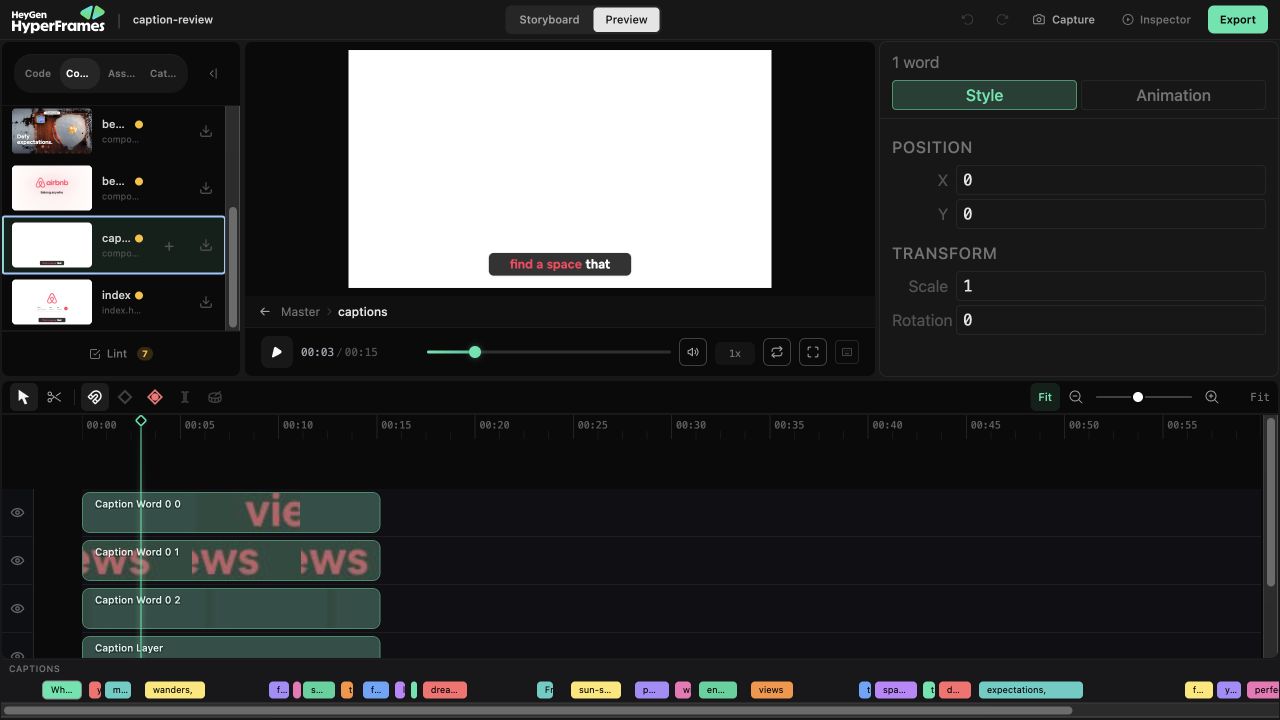 ## Adjust a word on the canvas
1. Select a caption word. Hold **Shift** to select more than one.
2. Drag the selection, resize it, or rotate it on the canvas.
3. Use the arrow keys for a 1-pixel nudge, or **Shift** + arrow for 10 pixels.
4. Reload the project once to confirm the override was saved.
Position, scale, rotation, color, opacity, font size, weight, and family overrides
are written to `caption-overrides.json` after a short delay.
## Use the timeline to inspect the rhythm
The caption timeline shows one block per word. Select a block to find the same word on the canvas. You can drag an edge to audition different start or end timing, and double-click a word to preview a new group boundary.
Timing changes, group splits, and Animation-tab changes are live-preview tools in the current
Studio. They do not survive a reload. Fix words, durable timing, group structure, and reusable
caption behavior in the caption source or ask the agent to update it, then reopen the project.
This distinction matters: Studio can save word-level visual overrides, but it is
not yet a complete caption-source editor.
Browse [caption components](/catalog/components/caption-highlight) when the source needs a reusable visual treatment.
## Review the result
* Watch with sound.
* Watch once with sound muted.
* Check names and important words against the audio.
* Check captions against cuts, overlays, and changing backgrounds.
* Confirm the final caption disappears cleanly.
If a preview-only edit fixed a real problem, move that change into the source before rendering.
## Related topics
* [Create captions or recut talking-head footage](/guides/captions-and-recuts)
* [Work with voice, sound, and captions](/guides/voice-and-audio)
* [Browse reusable caption treatments](/catalog/components/caption-highlight)
## Related topics
- [Add captions or repackage talking-head footage](/guides/captions-and-recuts.md)
- [Use voice, music, sound, and captions](/guides/voice-and-audio.md)
- [Editorial Emphasis](/catalog/components/caption-editorial-emphasis.md)
## Adjust a word on the canvas
1. Select a caption word. Hold **Shift** to select more than one.
2. Drag the selection, resize it, or rotate it on the canvas.
3. Use the arrow keys for a 1-pixel nudge, or **Shift** + arrow for 10 pixels.
4. Reload the project once to confirm the override was saved.
Position, scale, rotation, color, opacity, font size, weight, and family overrides
are written to `caption-overrides.json` after a short delay.
## Use the timeline to inspect the rhythm
The caption timeline shows one block per word. Select a block to find the same word on the canvas. You can drag an edge to audition different start or end timing, and double-click a word to preview a new group boundary.
Timing changes, group splits, and Animation-tab changes are live-preview tools in the current
Studio. They do not survive a reload. Fix words, durable timing, group structure, and reusable
caption behavior in the caption source or ask the agent to update it, then reopen the project.
This distinction matters: Studio can save word-level visual overrides, but it is
not yet a complete caption-source editor.
Browse [caption components](/catalog/components/caption-highlight) when the source needs a reusable visual treatment.
## Review the result
* Watch with sound.
* Watch once with sound muted.
* Check names and important words against the audio.
* Check captions against cuts, overlays, and changing backgrounds.
* Confirm the final caption disappears cleanly.
If a preview-only edit fixed a real problem, move that change into the source before rendering.
## Related topics
* [Create captions or recut talking-head footage](/guides/captions-and-recuts)
* [Work with voice, sound, and captions](/guides/voice-and-audio)
* [Browse reusable caption treatments](/catalog/components/caption-highlight)
## Related topics
- [Add captions or repackage talking-head footage](/guides/captions-and-recuts.md)
- [Use voice, music, sound, and captions](/guides/voice-and-audio.md)
- [Editorial Emphasis](/catalog/components/caption-editorial-emphasis.md)