> ## Documentation Index
> Fetch the complete documentation index at: https://hyperframes.heygen.com/llms.txt
> Use this file to discover all available pages before exploring further.
# Build a slideshow
> Shape the main presentation, then add reveals, notes, branches, and hotspots where they help.
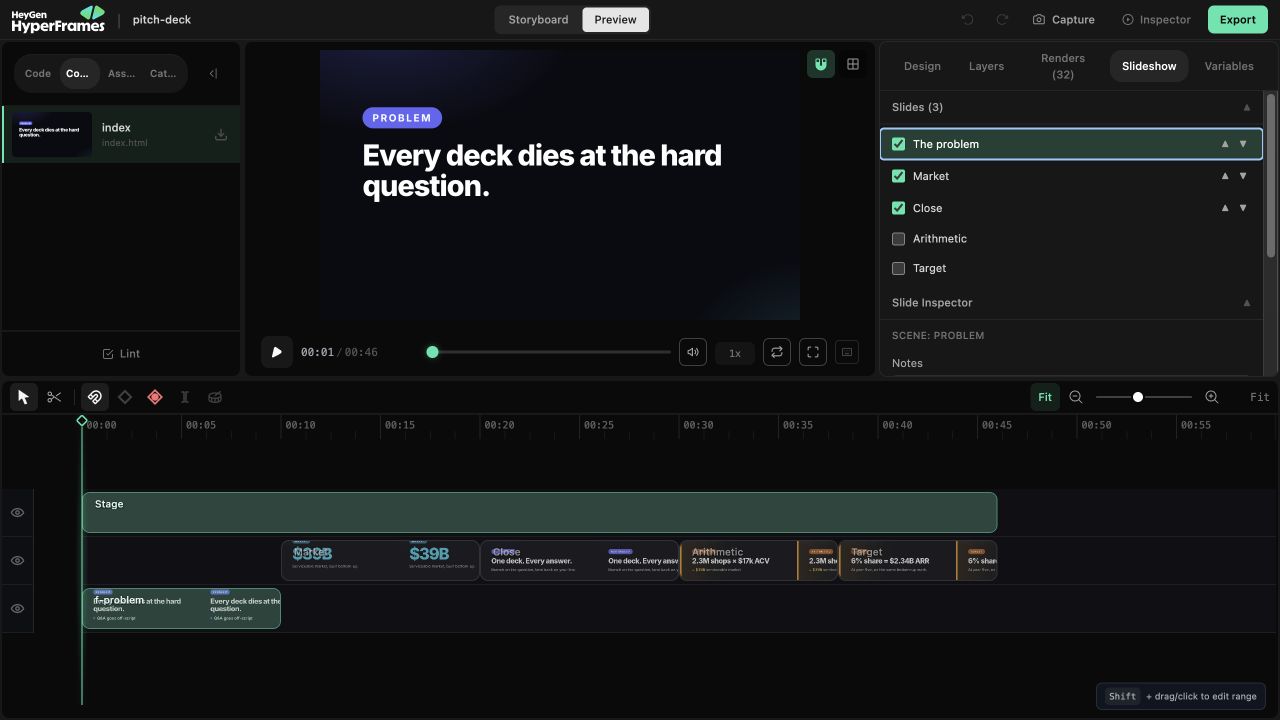
A slideshow is a live, navigable presentation—not one linear video. The **Slideshow** tab appears when the active composition contains a HyperFrames slideshow manifest.
 ## Build the main path
Start with the route everyone should see:
1. In **Slides**, check the scenes that belong in the main presentation.
2. Use the arrows to put them in order.
3. Select each slide and confirm that it makes one complete point.
4. In **Slide Inspector**, add speaker notes that help the presenter rather than repeat the slide.
Studio saves slideshow changes into the project’s manifest. Notes save after a short pause; other edits save immediately and participate in project history.
## Add fragment reveals
Move the playhead to the moment when the presentation should pause, then click **Mark** in Slide Inspector. That time becomes a fragment hold-point for the selected slide.
Use fragments when the presenter needs to reveal part of an idea before advancing. A slide does not need a hold-point for every bullet.
## Add an optional path
Branches keep optional detail outside the main story:
1. Open **Branches**, name a branch, and assign its slides.
2. On the slide where the choice appears, select the visible button or object on the canvas.
3. Open **Hotspot Tool**, choose the target branch, add a useful label, and click **Make hotspot**.
4. Keep a clear route back to the main story.
Deleting a branch removes that branch definition and every hotspot that points to it, so Studio asks for confirmation first. The source scenes remain in the project.
## Test it as a presentation
Run the presenter locally:
```bash theme={null}
npx hyperframes present
```
Test next and previous navigation, every fragment, every hotspot, every branch, and the return path. Click **Present** or press **P** to open the synchronized audience view.
A slideshow stays interactive. If the result should simply play from beginning to end as an MP4,
use a [video workflow](/workflows) instead.
To create the deck with an agent before refining it here, follow [Create an interactive presentation](/guides/slideshow).
## Related topics
* [Create an interactive presentation](/guides/slideshow)
* [Use variables and templates](/studio/variables)
* [Work with source and an agent](/studio/source)
## Related topics
- [Music videos and slideshows](/prompting/music-and-slideshows.md)
- [Create an interactive presentation](/guides/slideshow.md)
- [Changelog](/changelog.md)
## Build the main path
Start with the route everyone should see:
1. In **Slides**, check the scenes that belong in the main presentation.
2. Use the arrows to put them in order.
3. Select each slide and confirm that it makes one complete point.
4. In **Slide Inspector**, add speaker notes that help the presenter rather than repeat the slide.
Studio saves slideshow changes into the project’s manifest. Notes save after a short pause; other edits save immediately and participate in project history.
## Add fragment reveals
Move the playhead to the moment when the presentation should pause, then click **Mark** in Slide Inspector. That time becomes a fragment hold-point for the selected slide.
Use fragments when the presenter needs to reveal part of an idea before advancing. A slide does not need a hold-point for every bullet.
## Add an optional path
Branches keep optional detail outside the main story:
1. Open **Branches**, name a branch, and assign its slides.
2. On the slide where the choice appears, select the visible button or object on the canvas.
3. Open **Hotspot Tool**, choose the target branch, add a useful label, and click **Make hotspot**.
4. Keep a clear route back to the main story.
Deleting a branch removes that branch definition and every hotspot that points to it, so Studio asks for confirmation first. The source scenes remain in the project.
## Test it as a presentation
Run the presenter locally:
```bash theme={null}
npx hyperframes present
```
Test next and previous navigation, every fragment, every hotspot, every branch, and the return path. Click **Present** or press **P** to open the synchronized audience view.
A slideshow stays interactive. If the result should simply play from beginning to end as an MP4,
use a [video workflow](/workflows) instead.
To create the deck with an agent before refining it here, follow [Create an interactive presentation](/guides/slideshow).
## Related topics
* [Create an interactive presentation](/guides/slideshow)
* [Use variables and templates](/studio/variables)
* [Work with source and an agent](/studio/source)
## Related topics
- [Music videos and slideshows](/prompting/music-and-slideshows.md)
- [Create an interactive presentation](/guides/slideshow.md)
- [Changelog](/changelog.md)