Documentation Index

Fetch the complete documentation index at: https://hyperframes.mintlify.app/llms.txt

Use this file to discover all available pages before exploring further.

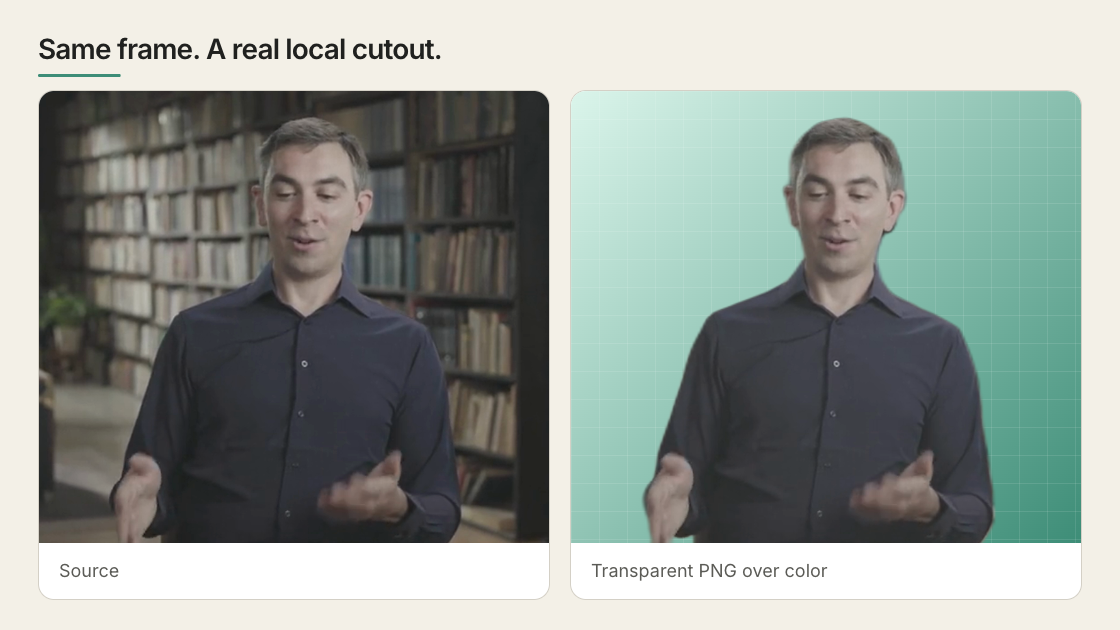
Background removal — also called matting in VFX — separates a foreground subject (typically a person) from its background. The output is a video with an alpha channel: fully transparent where the background was, opaque where the subject is. Drop it into any HyperFrames composition as a <video> tag and the subject floats over whatever you put behind them. The CLI ships a built-in remove-background command that runs locally — no API keys, no cloud upload, no green screen.

Quick Start

1

Verify ffmpeg is installed

The pipeline needs ffmpeg and ffprobe for decode + encode. Most systems already have them; if not:
Terminal
# macOS
brew install ffmpeg

# Ubuntu / Debian
sudo apt install ffmpeg
Confirm with npx hyperframes doctor — both should be green.
2

Remove the background from your video

Terminal
npx hyperframes remove-background subject.mp4 -o transparent.webm
On the first run, the CLI downloads ~168 MB of model weights to ~/.cache/hyperframes/background-removal/models/. Subsequent runs reuse the cache.Output:
◇  Removed background from 240 frames in 38.4s (6.3 fps, CoreML) → ./transparent.webm
3

Drop it into a composition

The output is a standard VP9-with-alpha WebM. Chrome’s <video> element decodes the alpha plane natively — no special player needed:
composition.html
<div class="scene">
  <!-- background layer -->
  <img src="city.jpg" class="bg" />

  <!-- transparent subject floats on top -->
  <video src="transparent.webm" autoplay muted loop playsinline></video>
</div>
Render the composition with the usual hyperframes render.

How it works

The pipeline runs four stages, all locally:
ffmpeg decode  →  u²-net_human_seg inference  →  alpha composite  →  ffmpeg encode
   (raw RGB)         (320×320 mask, then upsampled)                    (VP9-alpha)
The model is u²-net_human_seg (MIT license, ~168 MB ONNX). It runs through onnxruntime-node with the best-available execution provider on your machine: CoreML on Apple Silicon, CUDA on NVIDIA, CPU otherwise. The output is encoded with the exact ffmpeg flags Chrome’s <video> element needs to decode alpha — -pix_fmt yuva420p plus the alpha_mode=1 metadata tag. Get those wrong and the alpha plane is silently discarded by browsers.

Output formats

ExtensionCodecWhen to useSize (4s @ 1080p)
.webm (default)VP9 with alphaDrop into <video> for HTML5-native transparent playback~1 MB
.movProRes 4444 with alphaEditing round-trip in Premiere / Resolve / Final Cut~50 MB
.pngPNG with alphaSingle-image cutout (only when the input is also a single image)varies
Terminal
npx hyperframes remove-background subject.mp4 -o transparent.webm        # web playback
npx hyperframes remove-background subject.mp4 -o transparent.mov         # editing
npx hyperframes remove-background portrait.jpg -o cutout.png       # still image

Layer separation: emit the cutout and the background plate together

Pass --background-output (alias -b) to write a second transparent video alongside the cutout. Same source RGB, alpha is the inverse mask — opaque where the surroundings were, transparent where the subject is. The result is a clean two-layer separation in a single inference pass:
Terminal
npx hyperframes remove-background subject.mp4 \
  -o subject.webm \
  --background-output plate.webm
OutputAlphaUse it as
subject.webmMask — subject opaqueForeground layer (top of stack)
plate.webm255 − mask — subject region transparentBackground layer; place anything you want under the subject’s silhouette between this and subject.webm
Both encoders share the source W/H/fps and your --quality preset, so the layers are pixel-aligned. Encode cost roughly doubles; segmentation cost is unchanged.
This is a hole-cut plate, not an inpainted clean plate. The subject region in plate.webm is fully transparent — you have to composite something opaque under it (a graphic, a blurred copy, a different scene) to fill the hole. If you need an actual filled background where the subject was, use a video inpainter (LaMa, ProPainter, RunwayML Inpaint) — remove-background is not the right tool for that.

Hole-cut vs. clean plate — when does the difference matter?

A hole-cut plate keeps the original surroundings and makes the subject region transparent. A clean plate fills the subject region with reconstructed background — produced by a separate inpainting model. Display each alone over black:
Hole-cut plate (this command)Clean plate (inpainted)
Subject regionTransparent silhouetteReconstructed background pixels
What you see aloneA person-shaped holeAn empty room
CostOne inference pass, one extra ffmpeg encodeA second model (LaMa, ProPainter, E2FGVI)
Toolremove-background --background-outputOutside this CLI
The line is: does anything ever need to be visible through the subject’s silhouette where the subject used to be?
Use caseWhat you need
Text/graphics live between the cutout and the plate (the example above)Hole-cut — the graphics fill the hole.
Composite the subject onto an unrelated sceneNeither. Just use subject.webm; the plate is irrelevant.
Show “the room without the person” as a real backgroundClean plate — a hole-cut plate would show a transparent void.
Replace the person with a different subject (re-target)Clean plate — the new subject needs real pixels under it.
VFX rotoscoping / “remove an extra from this take”Clean plate — the canonical inpainting use case.
If something opaque always covers the silhouette, hole-cut is sufficient and ~1000× cheaper than running an inpainter.

The two-layer composition pattern

The two-layer pattern is functionally a drop-in for text-behind-subject without needing the original presenter.mp4 in the project — the plate replaces it as the bottom layer:
<!-- z=1 inverse-alpha plate fills everything except the subject's silhouette -->
<video src="plate.webm" data-start="0" data-duration="6" data-track-index="0" muted playsinline></video>

<!-- z=2 anything you want occluded by the subject lives here -->
<h1 style="z-index:2; position:absolute; top:50%; left:50%; transform:translate(-50%,-50%);">
  MAKE IT IN HYPERFRAMES
</h1>

<!-- z=3 the cutout puts the subject back on top -->
<div class="cutout-wrap" style="position:absolute;inset:0;z-index:3">
  <video src="subject.webm" data-start="0" data-duration="6" data-track-index="1" muted playsinline></video>
</div>
Constraints: the flag requires a video input and .webm or .mov for both outputs. It’s not valid for image inputs (no temporal pairing to do) and won’t accept .png for the plate.

Performance

Real-world numbers from the matting eval, running u²-net_human_seg on a 4-second 1080p clip:
PlatformProviderms/frame30-second clip
Apple Silicon (M2 Pro / M3 / M4)CoreML~263~2 min
NVIDIA GPU (T4, A10, RTX)CUDA~80–150~30–60 s
Linux x86CPU~1100~16 min
macOS IntelCPU~900~13 min
Matting is offline preprocessing — you run it once per asset and reuse the output. CPU-only is slow but always works; if you reuse the same subject clip repeatedly, run it once on a faster machine and check the transparent output into your project.

Picking a device explicitly

--device auto is the default and right for almost everyone. The flag exists for two cases:
  • Force CPU on a GPU box when you want to keep the GPU free for other work, or are debugging an EP-specific issue:
    Terminal
    npx hyperframes remove-background subject.mp4 -o transparent.webm --device cpu
    
  • Opt into CUDA by setting HYPERFRAMES_CUDA=1 and providing a GPU-enabled onnxruntime-node build (the bundled build is CPU + CoreML only, to keep the install small for the 99% of users who don’t have a GPU):
    Terminal
    HYPERFRAMES_CUDA=1 npx hyperframes remove-background subject.mp4 -o transparent.webm --device cuda
    
Run npx hyperframes remove-background --info to see what providers are detected on your machine and which one auto would pick.

Using the transparent video in a composition

The transparent WebM behaves like any other video element. The two patterns you’ll use most: Subject over a background image:
<div style="position: relative; width: 1920px; height: 1080px;">
  <img src="background.jpg" style="position: absolute; inset: 0;" />
  <video
    src="transparent.webm"
    autoplay
    muted
    loop
    playsinline
    style="position: absolute; right: 80px; bottom: 0; height: 90%;"
  ></video>
</div>
Subject over a HyperFrames scene:
<!-- scene contents (text, animations, etc.) -->
<div class="title-card">Welcome</div>

<!-- subject layered on top -->
<video src="transparent.webm" autoplay muted loop playsinline class="subject"></video>
The cutout inherits the composition’s frame rate and timeline — it plays through once during the scene’s duration, so match the source clip length to the scene length when possible. If the scene is longer than the clip, loop handles it.
When rendering a composition that contains a <video> element, the renderer reads the source via ffmpeg internally. Transparent WebMs are decoded with the alpha plane preserved.

Compositing patterns and pitfalls

The cutout webm is a re-encoded copy of the source mp4’s RGB — the matter pipeline decodes the source to raw RGB, runs segmentation, and re-encodes to VP9 with alpha. That choice has consequences depending on what you put behind it.

The three patterns

PatternBehind the cutoutResult
Cutout over a different scene (most common)Static image, gradient, animated bg, or unrelated footageClean. The cutout is the only source of the subject — no doubling, no edge halo. Use any --quality.
Cutout over its own source mp4 (text-behind-subject, talking-head with overlays)The same mp4 the cutout was generated fromTwo RGB sources for the same person. At default --quality balanced (crf 18) the doubling is barely visible; at --quality fast (crf 30) you’ll see a slight color shift / soft edge on the silhouette. Use --quality best (crf 12) for hero shots.
Cutout over different footage of the same subjectAnother take of the same personLooks like two overlapping people. Avoid — re-shoot or re-cut the source.
Putting a headline behind a presenter so their silhouette occludes the text:
<!-- z=1 base mp4: full lobby + presenter, plays the whole scene -->
<video
  id="cf-base"
  data-start="0" data-duration="6" data-media-start="0" data-track-index="0"
  src="presenter.mp4"
  muted playsinline
></video>

<!-- z=2 headline -->
<h1 id="cf-headline" style="position:absolute;top:50%;left:50%;
     transform:translate(-50%,-50%); z-index:2;
     color:#fff; text-shadow:0 6px 32px rgba(0,0,0,.55);
     clip-path:inset(0 0 100% 0); font-size:220px; font-weight:900;">
  MAKE IT IN HYPERFRAMES
</h1>

<!-- z=3 cutout: same source, alpha around presenter, hidden until the cut.
     The wrapper carries the opacity, NOT the <video> itself. -->
<div class="cutout-wrap" style="position:absolute;inset:0;z-index:3;opacity:0">
  <video
    id="cf-cutout"
    data-start="0" data-duration="6" data-media-start="0" data-track-index="1"
    src="presenter.webm"
    muted playsinline
  ></video>
</div>
const tl = gsap.timeline({ paused: true });
const CUT = 3.3;

// Reveal the headline early
tl.to("#cf-headline", { clipPath: "inset(0 0 0% 0)", duration: 0.6, ease: "expo.out" }, 0.25);

// At the cut, flip the cutout wrapper visible — silhouette punches through the headline
tl.set(".cutout-wrap", { opacity: 1 }, CUT);

// Sentinel: extend timeline to the composition's full duration so the renderer
// doesn't bail past the last meaningful tween.
tl.set({}, {}, 6);

Two non-obvious rules

1. Wrap the cutout video in a non-timed <div> and animate the wrapper, not the video. The framework forces opacity: 1 on any element with data-start/data-duration while it’s “active” — that’s how it controls clip visibility. CSS opacity: 0 on the video element is silently overwritten by the framework’s clip lifecycle, so an opacity tween on the video element won’t do anything. Wrap the video in a <div> that has no data-* attributes; the wrapper is owned entirely by your CSS/GSAP. 2. Both videos start at data-start="0" and decode in sync from t=0. It’s tempting to “late-mount” the cutout (data-start="3.3" to match the cut). Don’t — Chrome does a seek + decoder warm-up at mount, which can land one frame off the base mp4 at the cut moment. With both videos mounted from t=0 and the cutout’s wrapper opacity-animated, both decoders advance the same way and stay frame-accurate.

Quality preset and color match

When the cutout is overlaid on its own source mp4, the encoder’s CRF directly affects how visible the doubling is at edges:
--qualityCRFFile size (12s @ 1080p)When to use
fast30~2 MBCutout sits over an unrelated background and file size matters
balanced (default)18~6 MBRecommended for text-behind-subject and any pattern that overlays on the source
best12~12 MBHero shots, masters, or anything you’ll re-encode downstream
The encoder also writes BT.709 + limited-range color metadata so Chrome’s YUV→RGB pipeline matches the source mp4’s. Without those tags, the cutout would render slightly differently from the underlying mp4 even at lossless quality (visible red/skin shift).

What u²-net_human_seg is and isn’t good for

The model is purpose-built for portrait / human matting. It excels when:
  • ✅ The subject is a person, head-and-shoulders or full-body
  • ✅ The framing is reasonably stable (not a wide handheld shot)
  • ✅ The background contrasts with the subject
It struggles or fails on:
  • ❌ Non-human subjects (products, animals, objects). The model will return a mostly-empty mask.
  • ❌ Very fine hair detail on a busy background. The 320×320 inference resolution means hair tips get softened — fine for most use cases, but compositors notice.
  • ❌ Frame-to-frame temporal consistency. Each frame is processed independently, so static backgrounds with moving subjects can show subtle edge flicker. For most web playback this is invisible; for high-end VFX it may matter.
  • ❌ Live streams or real-time capture. The pipeline is batch-only.
If your use case hits one of these, see the alternatives below.

Alternatives — when the built-in command isn’t the right tool

The CLI ships one model on purpose — the one that’s MIT-licensed, runs everywhere, and produces production-quality output for person/portrait video. The list below leads with free, open-source tools that pair naturally with HyperFrames. Each entry calls out the actual catch — license, install effort, hardware needs — so you can pick the right one for your situation. Full benchmarks are in the matting eval.

Free, open-source CLIs and libraries

These all run locally with no account, no upload, no watermark.
ToolWhen to use itCatch
rembg (Python, MIT)You need a different subject type — isnet-general-use for objects/animals/products, birefnet-portrait for a quality ceiling on hair, silueta for a tiny ~40 MB footprint. Same family as our default model, more variety.Requires Python + pip install rembg. Some bundled models (birefnet-*) need ~4 GB RAM and are CPU-only
BiRefNet (PyTorch, MIT)Highest-fidelity portrait mattes available — visibly better hair edges than u²-netHeavy (~4 GB inference RAM), slow on CPU, broken on Apple CoreML at the time of the eval
Robust Video Matting (RVM) (PyTorch, GPL-3.0)The only widely-available model with temporal consistency built in — no edge flicker on moving subjects. Best choice when you’re matting a long talking-head clip and frame-to-frame stability mattersGPL-3.0 license is incompatible with most commercial / proprietary codebases. Read your repo’s license before using
Backgroundremover (Python, MIT)Simple pip install wrapper around u²-net; nice if you want a Python API instead of our Node CLISame model family as ours, no quality difference — pick whichever fits your stack
ComfyUI (open-source, GPL-3.0 core)Custom workflows: chain a segmentation model + alpha refinement + temporal smoothing. The right tool for tricky cases (multiple subjects, hair against a similar background, sports footage)Setup is involved (Python, models, node graph). Worth it for repeat specialty work
After running any of these externally, encode the output as a HyperFrames-compatible transparent WebM with:
Terminal
ffmpeg -i frames-%04d.png -c:v libvpx-vp9 \
  -pix_fmt yuva420p \
  -metadata:s:v:0 alpha_mode=1 \
  -auto-alt-ref 0 -b:v 0 -crf 30 \
  transparent.webm

Free desktop / GUI tools

ToolWhen to use itCatch
DaVinci Resolve — Magic MaskYou’re already editing in Resolve, want a brush-based UI with manual refinement, and need to round-trip the alpha into a larger editmacOS / Windows / Linux desktop install. The free tier covers Magic Mask; paid Studio version unlocks higher resolutions on some features
Backgroundremover.app (web)One-off image cutout, no signup, no watermarkSingle images only, not video. Free tier is hosted but the underlying tool is the same rembg model family
PhotoRoom Background Remover (web)Quick one-off image, polished UI, no signupSingle images only, e-commerce-tuned model

Web SaaS tools (free tiers, with strings)

ToolWhen to use itCatch
unscreen.comQuick one-off video, no install, drag-and-dropFree tier is watermarked and capped at short clips (~10s preview). Paid removes both. Run by the team behind remove.bg
RunwayML — Green ScreenPolished UI with brush refinement and time-aware tracking; the closest a SaaS gets to professional rotoFree tier exists but is credit-limited; serious use is a subscription
Kapwing — Background RemoverBrowser-based, integrates with their video editorFree tier is watermarked; paid removes it

How to choose

  • Person / portrait video, web playback, MIT-clean → use the built-in hyperframes remove-background (this is what it’s tuned for).
  • Non-human subject (product, animal, object) → rembg with isnet-general-use.
  • Maximum portrait quality, especially hairBiRefNet via Python.
  • Long video where edge flicker would be visible, GPL is OK → RVM.
  • One-off marketing clip, no install → DaVinci Resolve (free) for video, Backgroundremover.app for a still image.
  • Specialty case the off-the-shelf models can’t handle → ComfyUI with a custom graph.

Troubleshooting

Model download fails or hangs

The weights live on GitHub Releases (rembg’s v0.0.0 release, ~168 MB). If your network blocks GitHub or the download is interrupted:
Terminal
# Manually download and drop into the cache
mkdir -p ~/.cache/hyperframes/background-removal/models
curl -L -o ~/.cache/hyperframes/background-removal/models/u2net_human_seg.onnx \
  https://github.com/danielgatis/rembg/releases/download/v0.0.0/u2net_human_seg.onnx
Subsequent remove-background runs skip the download and use your local copy.

”ffmpeg and ffprobe are required”

The pipeline shells out to ffmpeg for decode + encode. Install via brew install ffmpeg on macOS or sudo apt install ffmpeg on Debian/Ubuntu. Verify with npx hyperframes doctor.

The output WebM looks fully opaque in the browser

Chrome only reads the alpha plane when the WebM is encoded as yuva420p with the alpha_mode=1 metadata tag. The CLI sets both. If you re-encode the output yourself (e.g. with another ffmpeg invocation), preserve those flags:
Terminal
ffmpeg -i in.webm -c:v libvpx-vp9 \
  -pix_fmt yuva420p \
  -metadata:s:v:0 alpha_mode=1 \
  -auto-alt-ref 0 \
  out.webm
To verify a WebM has alpha, extract the first frame and inspect:
Terminal
ffmpeg -y -c:v libvpx-vp9 -i out.webm -frames:v 1 -pix_fmt rgba -update 1 frame0.png
The decoded frame0.png should be RGBA and have non-trivial alpha values.

CoreML is “available” but inference fails to start

The pipeline auto-falls-back to CPU if CoreML fails to bind, with a warning. If you want to skip the CoreML attempt entirely, force CPU:
Terminal
npx hyperframes remove-background subject.mp4 -o transparent.webm --device cpu

The alpha mask has rough or jagged edges

That usually means the source frame is high-contrast against a similar-toned background and the model’s 320×320 inference resolution is showing through. Two paths forward:
  1. Re-frame or re-shoot to give the subject a more contrasting background.
  2. Try birefnet-portrait via rembg (see Other open-source models) — it’s higher quality at hair edges but slower and heavier.

Reference