

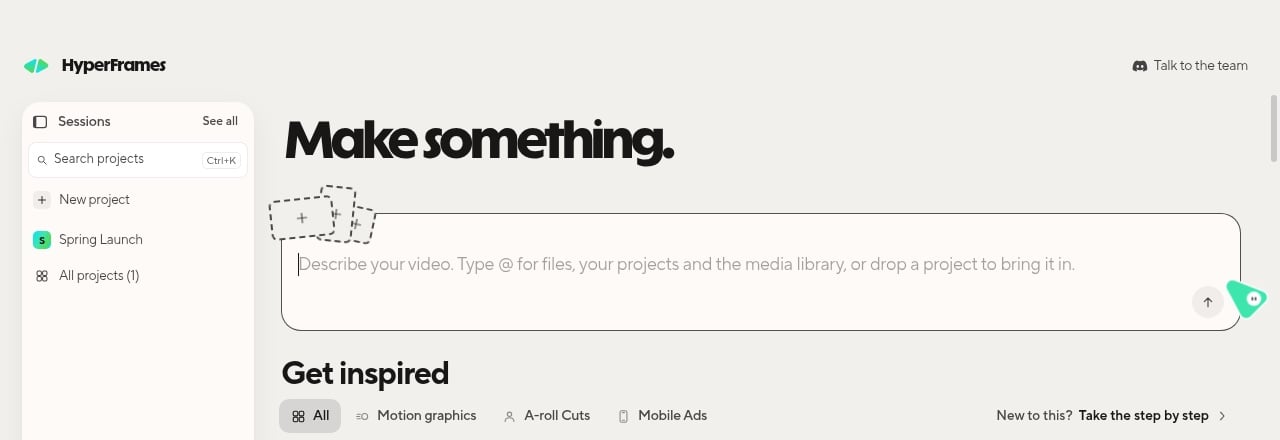
Home: the prompt box, your projects on the left, and Get inspired below.
Download and install
- Mac
- Linux
1
Download
Go to hyperframes.dev/studio and choose Download for macOS.
2
Install
Open the downloaded disk image and double-click Install HyperFrames. The installer copies the app into
Applications and shows Checking it is really from HeyGen, which can take a minute or two. When it says
HyperFrames is in Applications, choose Open HyperFrames.
First launch
- A short survey asks what you want to make and which agent you use. Every answer is optional, and Skip all counts as an answer. What you make decides where Get inspired opens. The agent you name starts your first chat if it is already set up.
- Home opens with the Create your first video card. See Make your first video.
Sign in with HeyGen
On first launch, the app asks you to sign in the first time you click something after the survey.- Choose Continue with HeyGen. Your browser opens hyperframes.dev.
- Sign in there within two minutes. The browser sends you back to the app, which shows You’re in! and carries on with what you clicked.