

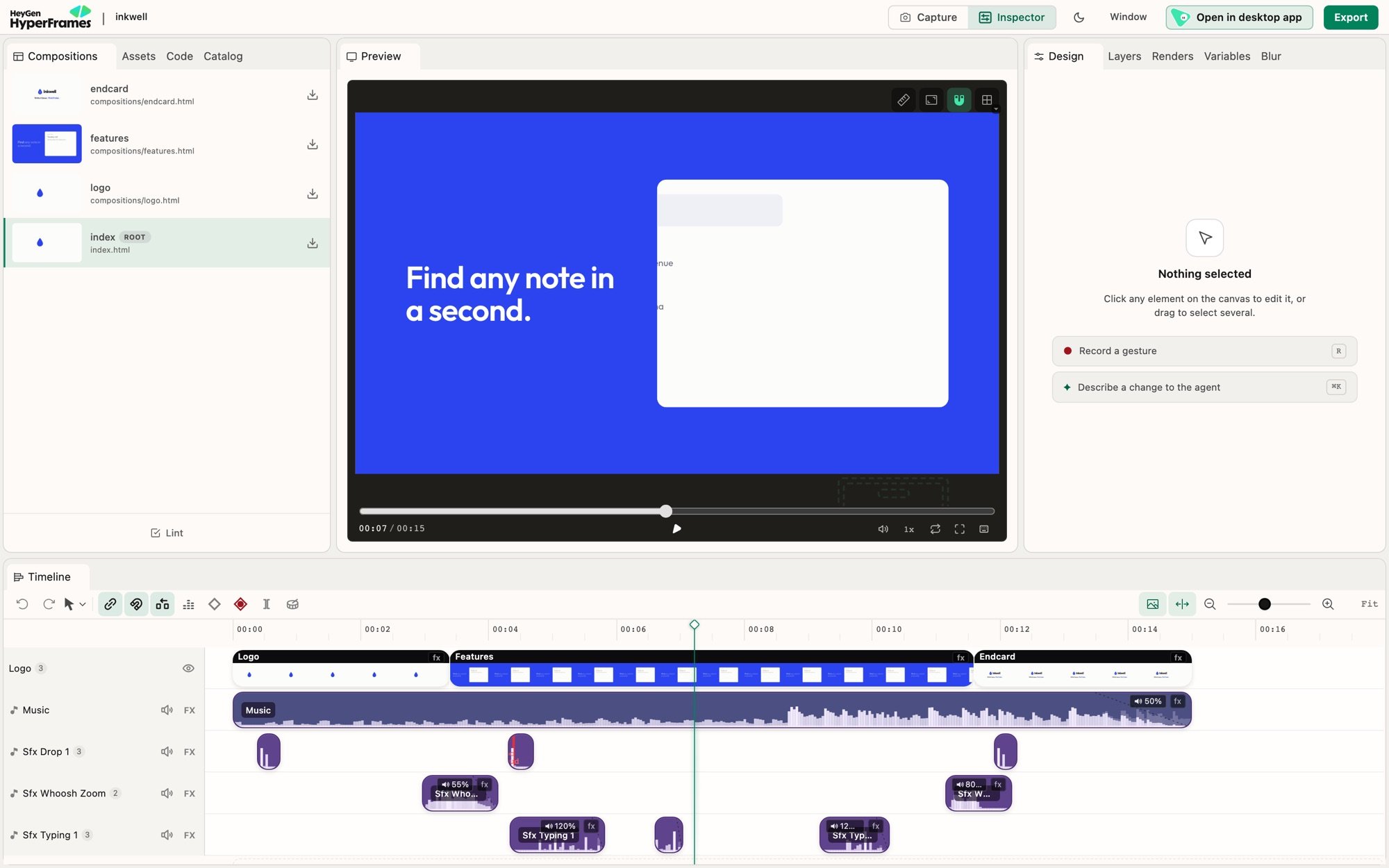
The browser editor today: files on the left, the preview in the middle, Design on the right, the timeline below. Open in desktop app moves the project to the Studio app.
Where to start
Panels can be dragged anywhere; Window reopens a closed one or resets the layout.
Edit what you see
Pause where the problem is, click the element (or pick it in Layers when things overlap), and change only that. Drag to move, resize, rotate or crop; use Design for text, layout, style, media, motion and color. Then play through the moment: a frame that looks right can still collide in motion. More: Edit the frame.Change the timing
Drag a clip to move it, drag an edge to make it longer or shorter, and use Split at playhead to cut one clip in two. Scrub across the cut after each change. More: the timeline.Scrub the preview
Click or drag the seek bar above the preview’s playback controls to move through the video. It stays available with the timeline hidden and in fullscreen. Use the arrow keys while the seek bar has focus, or Home and End to jump to the start and end. Seeking pauses playback, just like moving the timeline playhead.Check and export
Run Lint (bottom left) and fix what it reports, then the full check before you deliver:Keyboard shortcuts
Shortcuts depend on the active area. The table below covers the shortcuts implemented by the browser editor’s player, canvas, and timeline.Playback
Editing
The focused area decides what a shared shortcut does. Arrow keys nudge a selected
canvas element, step through frames when nothing nudgeable is selected, or move
between timeline targets when the timeline has focus (see Timeline
navigation below).
K adds or removes a keyframe at the
playhead when a canvas element is selected, starting an animation on a static
element, and otherwise stops playback. J always drives playback.
Timeline navigation
Tab into the timeline before using these commands. The browser editor keeps one logical timeline target in the Tab order and moves that target without requiring every row or clip to stay mounted.
On an expandable track row, Right arrow expands collapsed keyframe lanes and Left arrow collapses expanded lanes. From a keyframe property row, Left arrow returns to its parent track row. When no disclosure or parent action applies, those arrows continue moving within the row.
If the destination is outside the virtualized viewport, the browser editor scrolls it into view and restores focus after it mounts.
Keyframes and recording
During gesture recording, drag records position, scroll records depth,
Shift-drag records 3D rotation, Option/Alt-drag records rotation, and
Command/Ctrl-drag or scroll records opacity or scale.
Canvas and panels
Use the Shortcuts and tools button beside the playback controls for the
built-in shortcut list, work-area controls, and jump-to-frame field.