

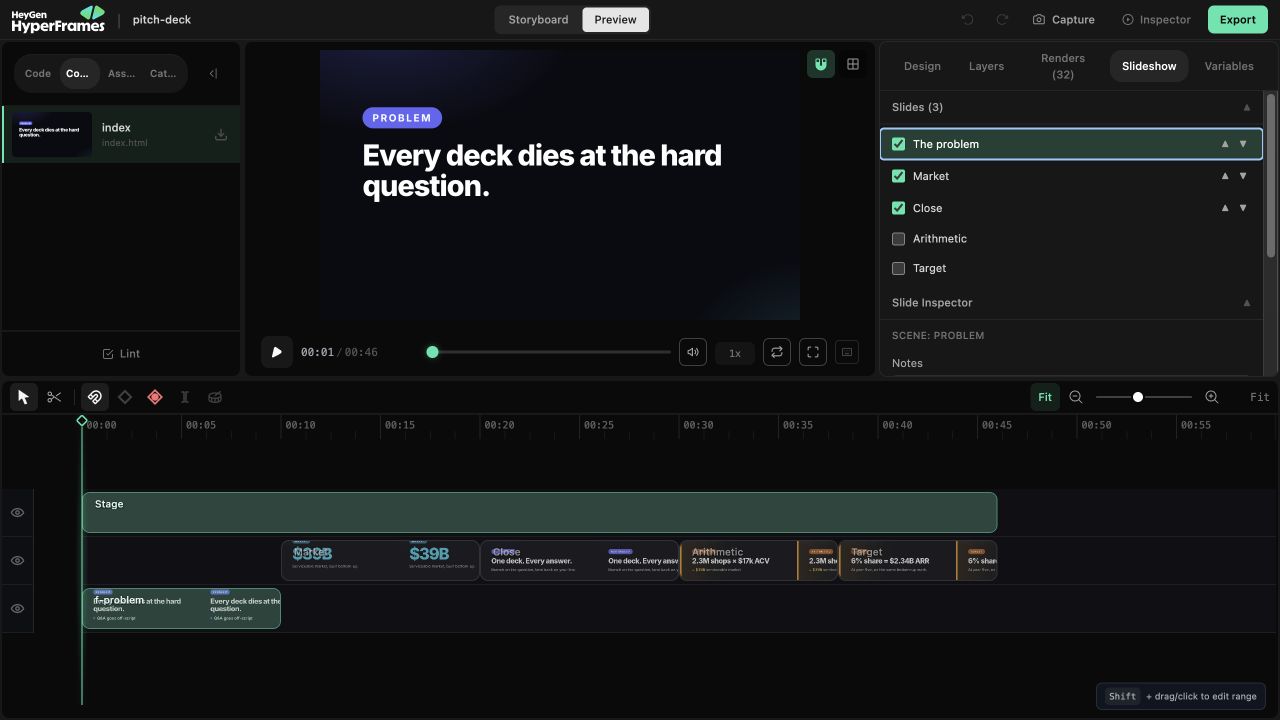
The Slideshow panel builds the main route from real scenes before optional branches are added.
Build the main path
Start with the route everyone should see:- In Slides, check the scenes that belong in the main presentation.
- Use the arrows to put them in order.
- Select each slide and confirm that it makes one complete point.
- In Slide Inspector, add speaker notes that help the presenter rather than repeat the slide.
Add fragment reveals
Move the playhead to the moment when the presentation should pause, then click Mark in Slide Inspector. That time becomes a fragment hold-point for the selected slide. Use fragments when the presenter needs to reveal part of an idea before advancing. A slide does not need a hold-point for every bullet.Add an optional path
Branches keep optional detail outside the main story:- Open Branches, name a branch, and assign its slides.
- On the slide where the choice appears, select the visible button or object on the canvas.
- Open Hotspot Tool, choose the target branch, add a useful label, and click Make hotspot.
- Keep a clear route back to the main story.
Test it as a presentation
Run the presenter locally:A slideshow stays interactive. If the result should simply play from beginning to end as an MP4,
use a video workflow instead.