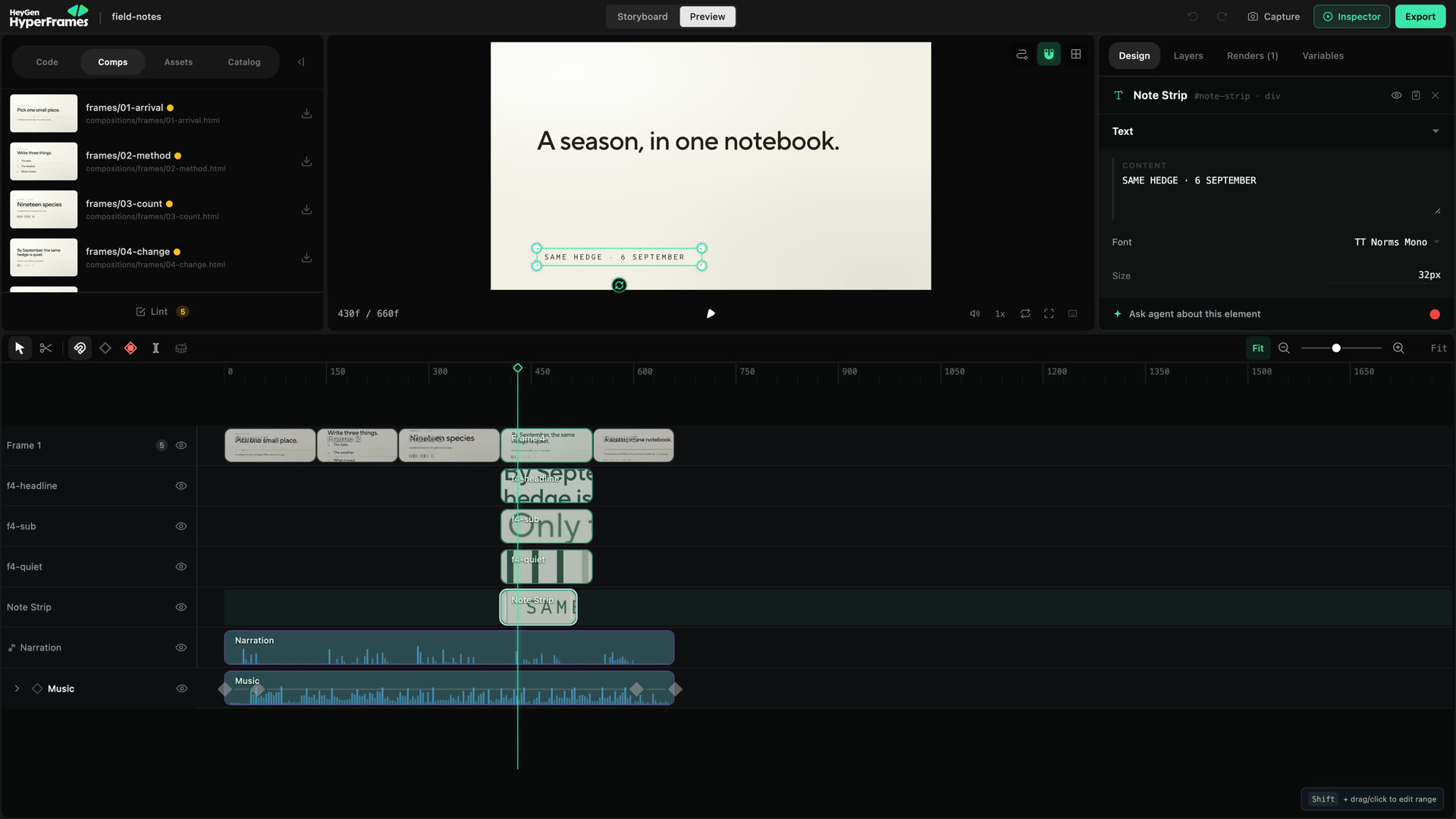
Drag the body of a clip left or right. Its start time changes while its duration stays the same.Use snapping to align the clip with the playhead, another boundary, or a useful beat.
Zoom in for keyframes and short edits. Zoom out to understand the complete sequence.Use the playhead for the exact edit moment. Use playback and frame stepping to check what happens immediately before and after it.Tab into the timeline to reach its current logical focus target. Use Left and Right to move within that row. Use Up and Down to move to the nearest target at the same time in the previous or next row.Home and End move to the start or end of the focused row. Hold Command or Ctrl to move to the first or last logical row. Page Up and Page Down move by one visible page of rows.On an expandable track row, Right expands collapsed keyframe property lanes and Left collapses expanded lanes. From a keyframe property row, Left returns to its parent track row. Enter or Space toggles the same lanes. Use the Context Menu key or Shift + F10 to open the focused target’s menu when it has one.The timeline keeps only one logical timeline target in the Tab order. Native header controls, such as visibility and keyframe actions, remain separate Tab stops. When the logical target is outside the virtualized viewport, Studio keeps it mounted, scrolls it into view, and then restores focus.Screen readers receive the timeline as a treegrid. Track rows announce their level and expanded state. Clips and keyframes announce their names, times, and selection state. Easing controls announce their names and times.See Keyboard shortcuts for the complete command table.
Beat markers provide timing landmarks, especially for music-driven work. Snap edits to them when the audio should drive the cut; ignore them when the story or voiceover needs a different rhythm.
Expand a nested composition to see its children, or open it and use the breadcrumb to return. Be clear whether you are changing the scene’s internal timing or its timing in the parent video.
Move, trim, split, and many other timeline actions participate in Studio history. Undo immediately when a result is unexpected, then retry with a closer zoom or a more precise playhead position.